ColdFusion 8 and 9, ColdFusion Builder, and Flash Builder 4 Installers

I am commonly asked questions about the installers for ColdFusion 8 and 9, ColdFusion Builder, and Flash Builder 4 so I thought I'd make my long-overdue return to the world of blogging by compiling here some details that are hard to ascertain elsewhere.

Before I get into the details: you can find the EULAs for all the Adobe products mentioned here at http://www.adobe.com/products/eulas. Regardless of what the technical limitations are or aren't with any of this software, you're bound to the terms of the EULA for whatever product you're using. Okay, now let's get on with it.

ColdFusion 8 and 9 Installers

For ColdFusion 8 and ColdFusion 9 (the following facts are actually true for certain earlier versions as well but as all earlier versions and their corresponding installers are no longer available from Adobe, I'm not going to concern myself with them here), there is for any given platform and language (e.g. Windows 32-bit English, Windows 64-bit Japanese, Solaris 64-bit English, etc.) only a single installer for ColdFusion; how ColdFusion behaves once installed is dependent on the installation type you choose and the license key (a.k.a. serial number) you apply. So no matter if you want Enterprise, Standard, Trial (in which case you apply no license key), or Developer (in which case you apply no license key), you use the same installer. The way the download links are labeled may seem to imply otherwise, but do not be mislead! Take Windows 64-bit for example; there is only 1 installer for Windows 64-bit English (and then another for Windows 64-bit Japanese), not separate installers for Enterprise, Standard, Trial, and Developer. And it doesn't matter where or from whom you purchased ColdFusion nor does it matter via which sales program you purchased: you still use the same installer; there really is only one installer for any given supported platform and language. If you don't supply a license key and you choose Trial, you get the Trial edition, which is effectively the Enterprise edition for 30 days and after that point it becomes the Developer edition, which is effectively the Enterprise edition with technical limitations on access by external IP addresses. In addition, both Trial and Developer have additional EULA restrictions so be sure to check those out.

The ColdFusion 9 installers can be accessed via http://www.adobe.com/go/trycoldfusion.

The ColdFusion 8 installers can be accessed via http://www.adobe.com/cfusion/tdrc/index.cfm?product=coldfusion8.

When you install ColdFusion 8 or ColdFusion 9, you are given the choice to install it in any of the following configurations: Server (a.k.a. "standalone"), Multi-server, and J2EE. Please note that if you have a Standard license key, you must choose the Server configuration; Multi-server and J2EE installations will not accept Standard license keys. If you choose to supply your license key during installation and you supply a Standard license key, you will only be able to choose the Server configuration.

Two important notes:

  • ColdFusion 8 Standard is only available for the 32-bit platforms on which ColdFusion 8 is supported (even for the Server configuration). If you install a 64-bit version of ColdFusion 8, you must supply a ColdFusion 8 Enterprise license key. If you try to supply a Standard license key, the key will not be accepted.
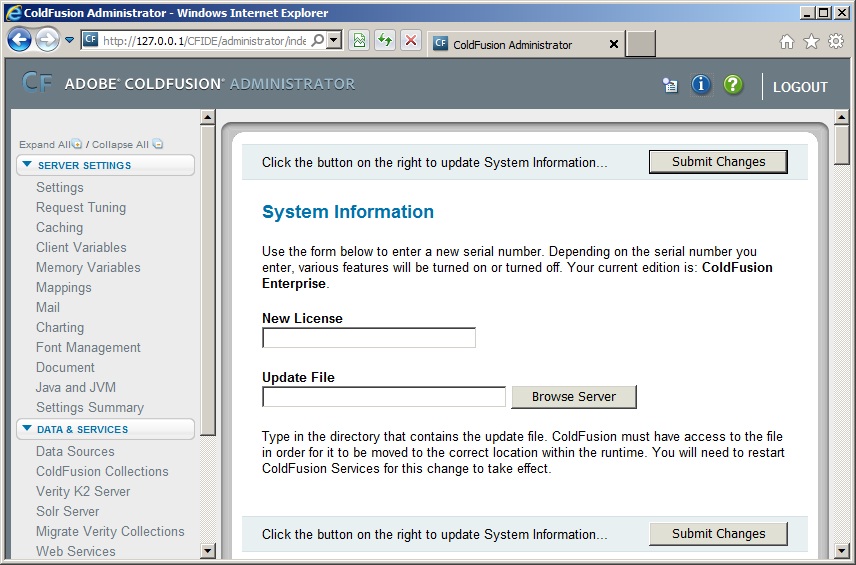
  • Though ColdFusion 9 Standard is available for 64-bit Linux, there is a known issue with ColdFusion 9 not accepting standard license keys during installation on 64-bit Linux. But this is only an issue during installation: you can apply the key after installation via the ColdFusion Administrator.

ColdFusion Builder Installers

For ColdFusion Builder, the story is much the same: there is for any given platform and language (Windows English, Mac English, Windows Japanese, and Mac Japanese) only a single installer for ColdFusion Builder; how ColdFusion Builder behaves once installed is dependent on the license key (a.k.a. serial number) you apply. It doesn't matter if you want to do a Standalone installation or if you want to install ColdFusion Builder as a plug-in to Flash Builder or any other Eclipse installation--you use the same installer either way. When you fire up ColdFusion Builder, you'll be asked for a license key and if you don't supply one, you'll get the Trial edition, which is a fully functioning version of ColdFusion Builder that can be used for 60 days after installation. To keep rolling along beyond 60d ays, you'll just need to supply (after legally acquiring, of course) a valid license key when starting ColdFusion Builder. Here too it doesn't matter where or from whom you purchased ColdFusion Builder nor does it matter via which sales program you purchased: you still use the same installer; there really is only one installer for any given supported platform and language.

The ColdFusion Builder installers can be accessed via http://www.adobe.com/go/trycoldfusionbuilder.

Incidentally, if you're installing both ColdFusion Builder and Flash Builder 4 and/or any other Eclipse plug-ins in the same eclipse environment on Windows, my recommendation is that you install ColdFusion Builder in the Standalone configuration and then install Flash Builder 4 and/or the other Eclipse plug-ins as plug-ins to the ColdFusion Builder installation. The reason for this is that when it is the base install, you can have ColdFusion Builder associate ColdFusion files (.cfm, .cfc, and so on) in Windows so that when you open one of these files from Windows, it will open properly in ColdFusion Builder. This may not sound like much but trust me: this is actually a nifty little feature for an Eclipse-based IDE. Speaking of Flash Builder 4...

Flash Builder 4 Installers

For Flash Builder 4, the story is much the same but there is an important difference: for any given platform and language (and there are numerous languages available), there is one installer to use if you're doing a Standalone installation and another to use if you're doing an Eclipse Plug-in installation. So for any given platform and language, there are two installers and you need to choose the right one for the installation type you're going to perform. But note that there are not separate installers for Flash Builder 4 Standard and Flash Builder 4 Premium: just as ColdFusion 8 and 9 behave as Standard if you supply a Standard license key and Enterprise if you supply an Enterprise license key, so too does Flash Builder 4 behave as Standard if you supply a Standard license key and Premium if you supply a Premium license key. Like ColdFusion Builder, when you fire up Flash Builder, you'll be asked for a license key and if you don't supply one, you'll get the Trial edition, which is a fully functioning version of Flash Builder 4 Premium that can be used for 60 days after installation. To keep rolling along beyond 60 days, you'll just need to supply (again, after legally acquiring, of course) a valid license key when starting Flash Builder 4. Here too it doesn't matter where or from whom you purchased Flash Builder 4 nor does it matter via which sales program you purchased: you still use one of the same two installers (the Standalone installer if you want to do a Standalone installation or the Eclipse Plug-in installer if you want to install Flash Builder 4 as a plug-in to ColdFusion Builder or any other Eclipse installation) for your platform and language.

The Flash Builder 4 installers can be accessed via http://www.adobe.com/go/try_flashbuilder.

ColdFusion Builder Beta 3 Available on Adobe Labs

ColdFusion Builder Beta 3 is available on Adobe Labs:

http://labs.adobe.com/technologies/coldfusionbuilder

Download it, install it, rock it!

ColdFusion Builder Frozen, Consuming Large Amounts of RAM

I just had an experience where every time I would launch ColdFusion Builder beta 2, it would consume as much RAM as it could get. ColdFusion Builder seemed to launch properly but I couldn't interact with it: it was unresponsive as it went about its rampant RAM consumption and I had no choice but to kill the process.

I have Flash Builder 4 beta 2 installed as a plug-in and I was running it in Trial mode and accordingly every time I launched ColdFusion Builder, Flash Builder presented me with a registration screen. Normally, I'd have to clear this screen before ColdFusion Builder would launch completely but during the time when ColdFusion Builder was getting all whacked out on RAM, it was launching completely even while presenting this screen.

But the good news is that I got ColdFusion Builder working again by removing my "Adobe ColdFusion Builder workspace" directory; ColdFusion Builder then created a new one on its next launch and all was well. This is a drastic step that effectively completely resets ColdFusion Builder--but of course, that's a lot better than what I was dealing with. But actually, I was able to bail myself out on that and perhaps this will work for you too: rather than completely deleting my "Adobe ColdFusion Builder workspace" directory, I just renamed it (you could of course also move it) and then when the new one was created upon my next restart, I did a folder comparison of the 2 and I copied over a number of directories and files. By and large, what I copied over were those directories and files that were missing from the new directory, not those that were simply changed. In the end, as well as I could tell, when I next launched ColdFusion Builder, it not only launched properly but it was back in the state I wanted it in.

ColdFusion 9 Training in Washington, DC on December 22, 2009 from Fig Leaf

My friends at Fig Leaf have developed the Advanced ColdFusion 9 Development class that will be rolling out soon and they have a special offer (call it a Christmas present!): participate in their 1-day beta class on December 22, 2009 in Washington, DC for only $99! They'll get validation of their class exercises, you'll get the full benefit of the training at this great, one-time-only price. Click here for full info and to register.

PDF Portfolios & ColdFusion 9

I think that one of the coolest features in ColdFusion 9 is the ability to create PDF Portfolios. But this feature isn't one that I hear anyone talking about. Why? Well, I find that most ColdFusion developers--and I've talked to a whole lot about this--have never heard of PDF Portfolios. So what I need to do here first is point you to some info about PDF Portfolios themselves.

The best place to start is with this Adobe Acrobat 9 help documentation. Check out all those cool features!

Let's say you need ColdFusion 9 to send multiple pieces of content via email. Your options:

  1. Attach all the items to the email. This is messy.
  2. Put the items in a ZIP file and attach it to the email. Good luck getting this through email filters!
  3. Put the items in a PDF Package and attach it to the email. Your user gets a single attached file, opens it with Adobe Acrobat 9 or Adobe Reader 9 and browses through the content, even previewing it directly within Adobe Acrobat 9 or Adobe Reader 9!

Let's say you need a user to be able to get multiple logically connected pieces of content from your ColdFusion 9 web app; perhaps you even need to allow the user to select the pieces of content himself/herself. Your options:

  1. Display links to all the content; have your user click the link for each piece of content he/she wants. This is messy, plus the user has to do the work to keep the content logically connected when saving the content locally.
  2. Put the items in a ZIP file and display a link to it. This works and in certain situations may be the best approach, however the display of a ZIP file is rather bland.
  3. Put the items in a PDF Package and display a link to it. Your user gets a single file and, in many browsers, this file will open automatically for viewing with Adobe Acrobat 9 or Adobe Reader 9.

Starting to see how cool and useful PDF Packages can be? Want to see their use in action? Check out the related post linked below: you'll see that I have provided a link to the code for the PresentasticPlus app (and yes, that code is in a ZIP file but that's because ZIP files make sense for code) and in that app there is functionality for dynamically creating a PDF Package based on a user's selection(s).

I should point out that ColdFusion 9 creates a sub-type of a PDF Portfolio known as a PDF Package. Really, the main difference is that PDF Portfolios can have a custom user interface and PDF Packages can't (for more information on this, see this blog post from the LiveCycle Doc team). This is a cool feature and I recommend you learn more about how you can use it with Adobe Acrobat 9 (see Joel Geraci on Adobe TV).

Issue with ColdFusion 9 Accepting Standard License Keys during Installation on 64-bit Linux

We've recently seen an issue where the ColdFusion 9 installation program on 64-bit Linux will not accept (will reject) valid ColdFusion 9 Standard license keys (a.k.a serial numbers). You may see the following fail (failure) message:

The serial number that you entered is invalid

The workaround for this issue is to install ColdFusion 9 as Trial--that is, do not enter the license key (a.k.a. serial number) during installation--and then enter the license key (a.k.a serial number) via the ColdFusion Administrator after the installation has completed.

This issue only applies to ColdFusion 9 Standard license keys (a.k.a serial numbers); we have not seen any issue with the ColdFusion 9 installation program on 64-bit Linux accepting valid ColdFusion 9 Enterprise license keys (a.k.a. serial numbers).

2009-12-02 UPDATE: There is now an Adobe TechNote for this issue.

Short URLs for ColdFusion and ColdFusion Builder Bugtrackers

Good news: we now have short URLs for the public bugtrackers for ColdFusion and ColdFusion Builder. Here they are:

ColdFusion: http://www.adobe.com/go/CF_bugs
ColdFusion Builder: http://www.adobe.com/go/CFB_bugs

Tell all your friends! :)

Getting Started with ColdFusion

I'm giving the Getting Started with ColdFusion Lab at Adobe MAX 2009. You can get my presentation for it by clicking this link.

Presentastic: Working with PowerPoint Files in ColdFusion 9

Presentastic is a demo app I created to show off how easy it is to take advantage of ColdFusion's cool capabilities for working with PowerPoint files. The instructions for creating Presentastic are available via this link. Check it out!

2009-11-19 UPDATE: You asked for it, you got it: The actual code file for PresentasticPlus is available via this link. PresentasticPlus is the version of the app that implements the PDF Portfolio creation functionality referenced at the end of the instruction document.

2009-12-01 UPDATE: The one cool new ColdFusion 9 feature for working with PowerPoint files that the original app didn't showcase was converting HTML to PPT--so in order to showcase this feature, I created a new version: PresentasticGold. The code file for PresentasticGold is available via this link.

The Scoop on Scoping

I did a presentation called "The Scoop on Scoping" and it's high time I post it here. It has a lot of good information, however, if you don't plan to read it, let me at least give you the Golden Rule of ColdFusion Scoping:

Scope all references to all variables all the time (where ColdFusion allows it)

In ColdFusion 9, with the introduction of the "Local" keyword to identify the function local scope, there really won't be any good excuse to not refer to scopes by name all the time and so that "(where ColdFusion allows it)" part can pretty much go away. :)

The PDF version of the presentation is available via this link.

Getting Started with iPhone Development

My CFUnited presentation "iPhone Apps + Adobe ColdFusion," is about so much more than just using iPhone Apps and Adobe ColdFusion together! It's a really good place to start when you're looking to get into iPhone development, regardless of whether or not you're interested in making calls to a remote ColdFusion server. Certainly there is great information in the presentation for anyone who wants to make calls to a remote server, particularly a ColdFusion server, but you don't have to be interested in making remote calls from your iPhone apps to find the information in the presentation useful. So check it out! The related link for this blog post gives the link to my blog post "iPhone Apps + Adobe ColdFusion" from Friday containing links to the presentation in PDF format and to the code resources in a ZIP file.

iPhone Apps + Adobe ColdFusion

I'm presenting "iPhone Apps + Adobe ColdFusion" right now (well, right now as this post is going live anyway). And in this post, I am making the PDF version of my presentation file available via this link (note: the file location and link may change in the future but on this post on my blog itself the link will always be kept current).

UPDATE: I've been asked for my code samples from the presentation; you can find them here. To use them with NimbleKit, you'll need to create a new NimbleKit project in Xcode then drop these resources into wherever it is that you put the NimbleKit project; you'll need to overwrite the project's main.html file with this one. Note that the sayHello.cfc and sayHello.cfm files are not needed for your NimbleKit project; they are included so you can see what they do and so that you can deploy them to your own web server (of course, in that situation you'll need to change the NimbleKit code to make its calls to the server where you put the files).

More Entries

BlogCFC was created by Raymond Camden. This blog is running version 5.9.002. Contact Blog Owner